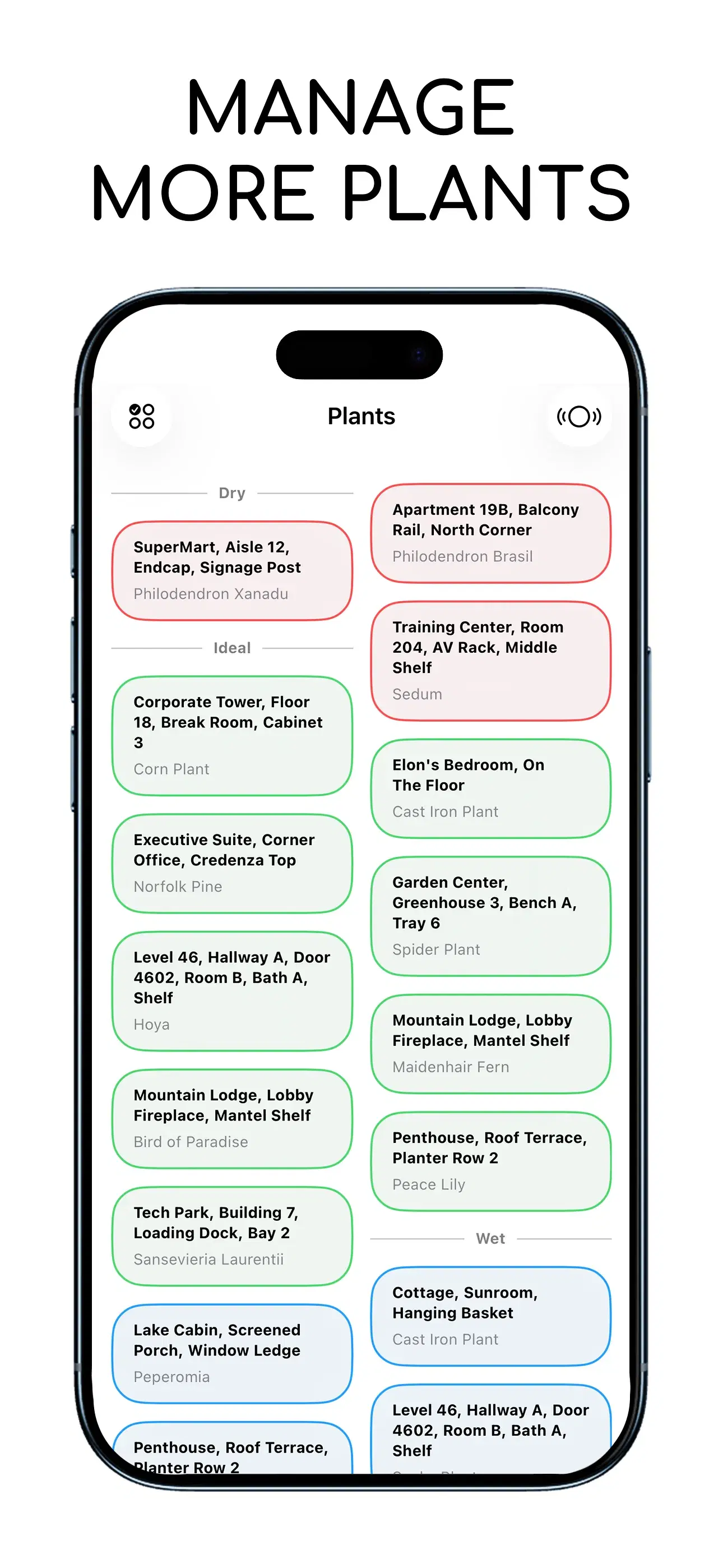
Step 1 of 3: Download The App And Sign In
Download the HydroPing app from the Apple App Store and sign in using your Apple ID or Google account.

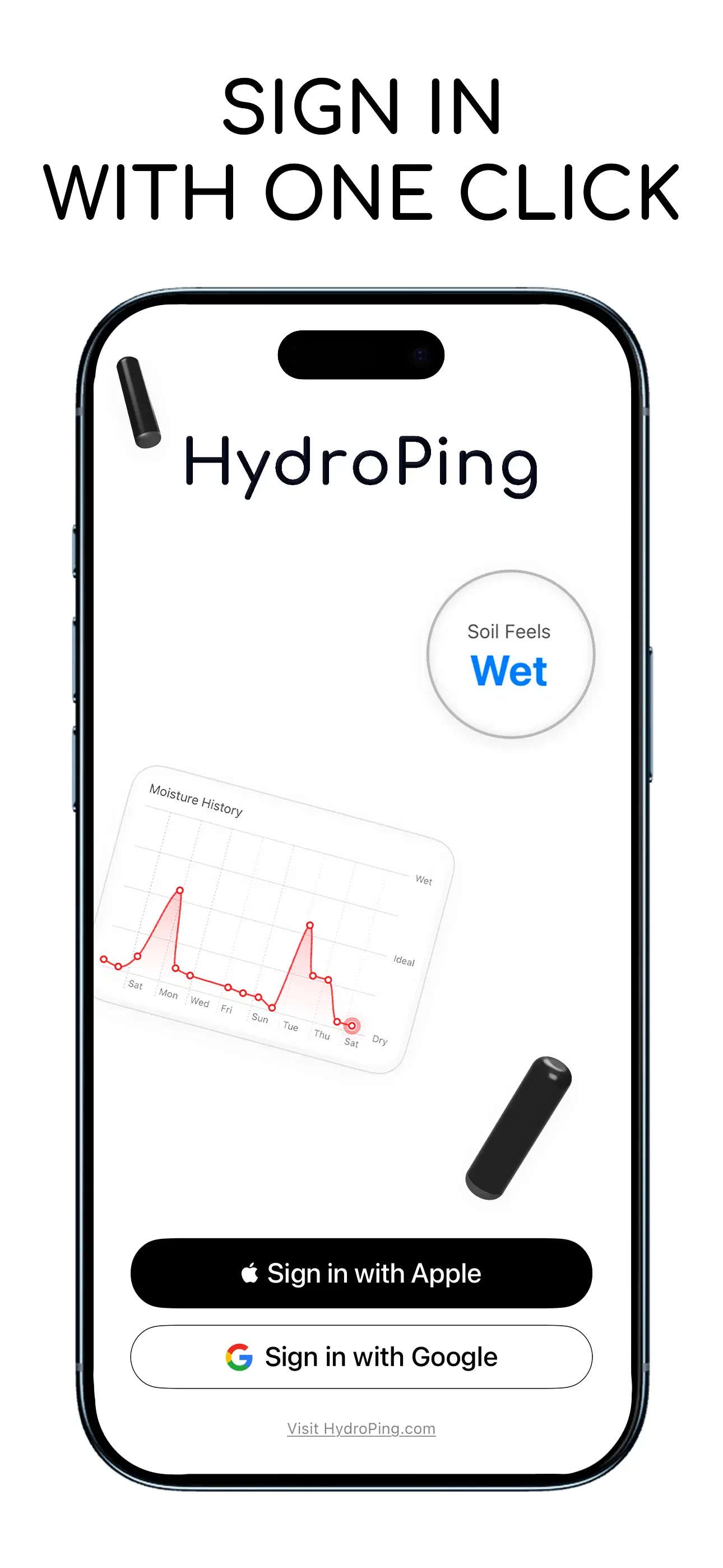
Make sure you have Wi-Fi connectivity.
Step 2 of 3: Devices > Activate A Device
Inside the App tap the top right corner button to head over to Account. Then navigate to Devices and tap on Activate A Device.
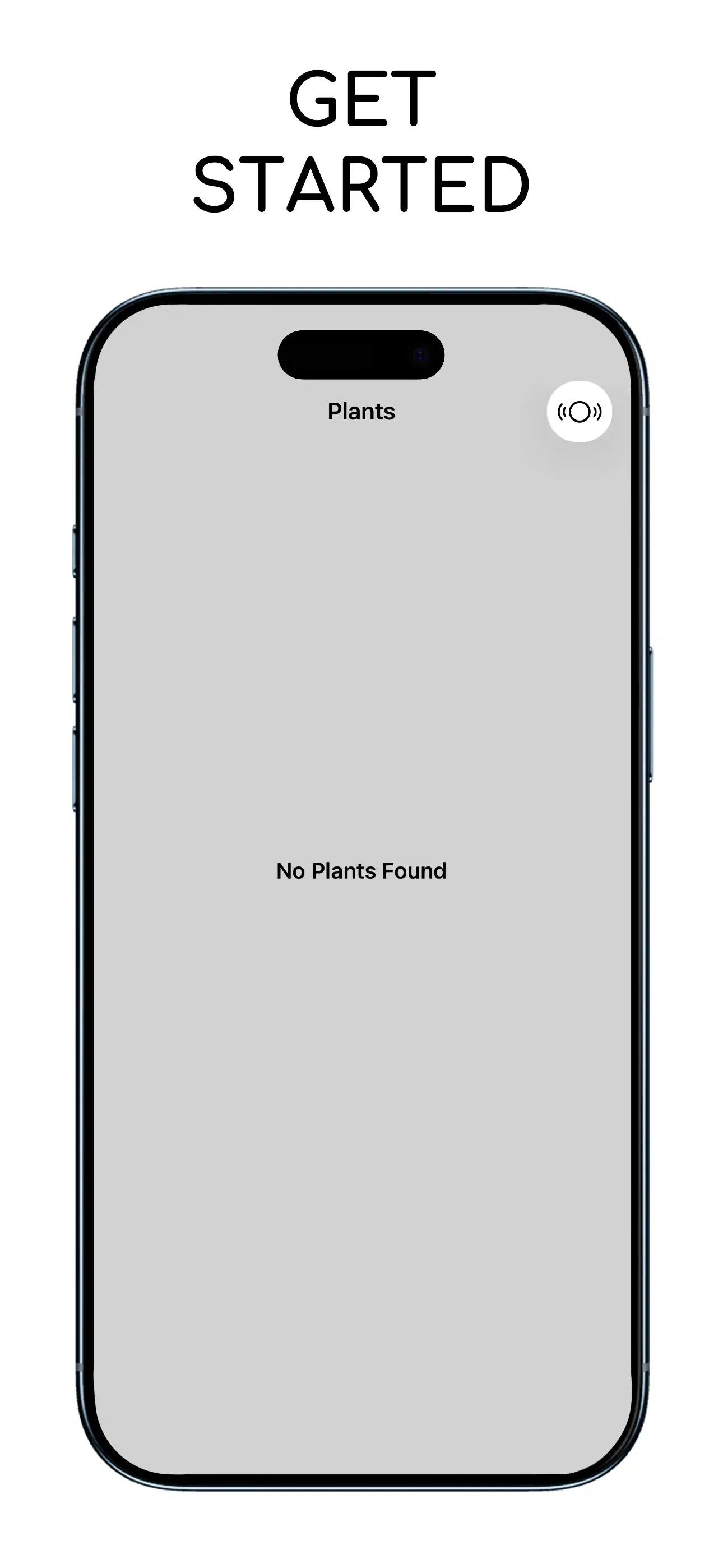
Activation will take less than a minute.
Step 3 of 3: Follow Steps On The App
Unwrap the device from its packaging and follow the steps in the app to connect it to Wi-Fi.
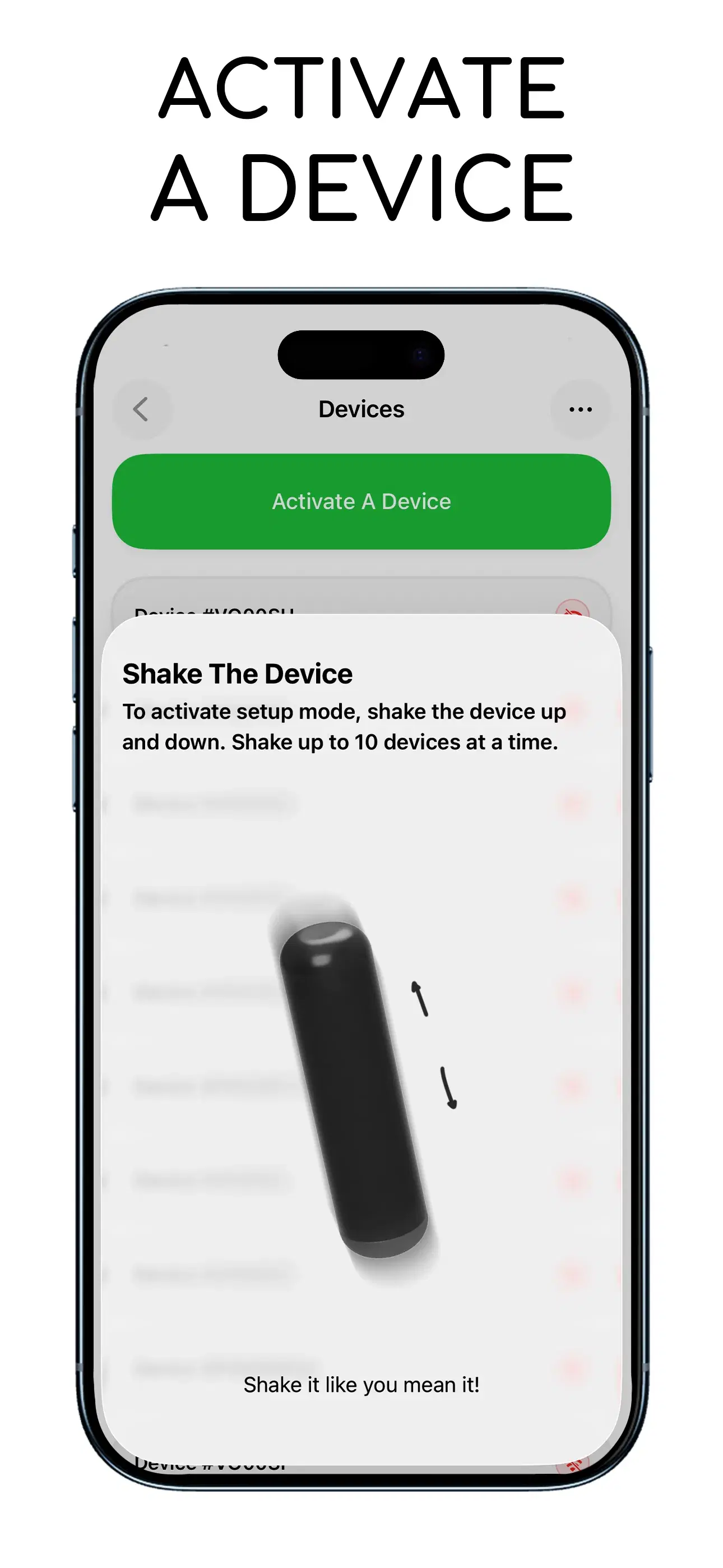
Follow the instructions in the App.
Repeat For More Devices
Activate up to 10 Devices at a time. After successfully activating a device, designate it to a specific plant and update Device's Nickname & Location.